Introduction
Turnitin Plagiarism Framework is a Canvas integration that allows instructors to use the Canvas assignment workflow. This integration allows Turnitin to be enabled for a Canvas assignment, provides a Similarity Report and Spelling and Grammar suggestions, and can be accessed via SpeedGrader.
All grading and feedback can be done in SpeedGrader and Canvas rubrics can be used.
Creating a Turnitin Plagiarism Framework Assignment
1. In your Canvas course, click on Assignments, then click +Assignment button.
2. Enter the Assignment Name, the Assignment instructions, and Points value. Choose Assignment Group (if applicable), and the Display Grade as format.
3. For Submission Type, select Online from the dropdown menu. Check the Text Entry and/or File Uploads box(es).
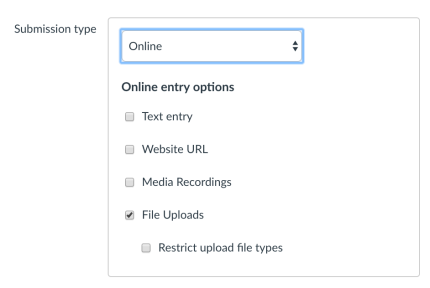
NOTE: If you want to ensure that students are submitting file in which Turnitin can generate a similarity report, choose to Restrict Upload File Types to readable text files such as pdf, doc, docx, pptx, etc.
4. Choose the number of submission attempts allowed.
5. Select Turnitin- PF from the dropdown menu and use the check boxes and dropdown menus to adjust any Turnitin settings for the assignment.
6. Select Save settings as default settings to retain these settings for future assignments in the course.
7. Select when you want to show the Similarity Report to students.

8. Select if this assignment will be a Group Assignment. Select if using Peer Review, and select to enable Anonymous Grading options.
NOTE: If using Group Assignments, all members of the group will be able to see the Similarity Report even if they did not submit the file themselves.
9. Complete Assign to and Due Date fields as needed.
10. Select Save & Publish to publish this assignment or select Save to save the assignment.
Using Speedgrader to Access the Similarity Scores and Reports
From Speedgrader, select the Similarity Score colored button (which displays the Similarity Score) to open the Similarity Report.

The Similarity Report can also be accessed through Gradebook by selecting the assignment where you would enter a grade and selecting the arrow button on the right.
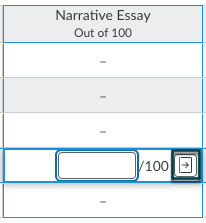
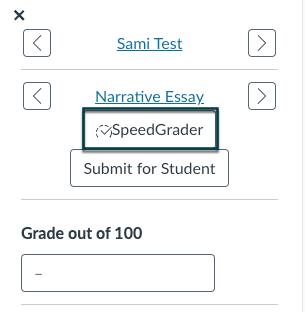
A side panel will open on the right which will then provide a link to Speedgrader.
Additional Information
Creating an assignment in Feedback Studio using Canvas Plagiarism Framework
Accessing the Similarity Report with Canvas Plagiarism Framework
Editing an assignment in Feedback Studio using Canvas Plagiarism Framework
LMS course copy recommendations for Feedback Studio in Canvas Plagiarism Framework
Canvas Plagiarism Framework FAQ for Feedback Studio instructors