Body
What is Microsoft Bookings?
Microsoft Bookings is an online scheduling tool that integrates with Microsoft 365. It helps individuals and teams manage appointments efficiently by allowing customers or colleagues to book time based on your availability.
Which option do you need?
-
Personal Bookings
Ideal for 1:1 meetings. Create meeting types (e.g., 15-minute check-in, advising session) and share your personal booking link. Bookings automatically respects your Outlook calendar availability. Users have reported time zone issues with Personal Bookings. You may wish to use a Shared Booking instead and specify a time zone.
-
Shared Bookings
Best for teams or departments offering services. Create a shared booking page, add staff, define services, set scheduling policies, and publish the page for customers to self-schedule.
How to access Bookings
- Web: Go to book.ms.
- Outlook: Add the Bookings app from the app launcher.
- Microsoft Teams: Add the Bookings app from the app rail.
How-To
Task: To create a booking.
Instructions
Step 1 - Go to book.ms or open the Bookings app in Outlook or Teams and select your Shared booking page.
Step 2 - Select Create booking page.
Step 3 - Create from scratch or clone from an existing booking page.
Step 4 - Follow the onscreen instructions to populate the Name, Add a logo, select a Business type, and set your Business hours. Click Next.
Step 5 - Invite staff using the people picker. Click Next.
Step 6 - Change the meeting type or keep as the default. Click Next.
Step 7 - Choose who can book appointments. Click Create.
Adding to Outlook Email Signature
- Open Outlook on the web
- Settings
- Account
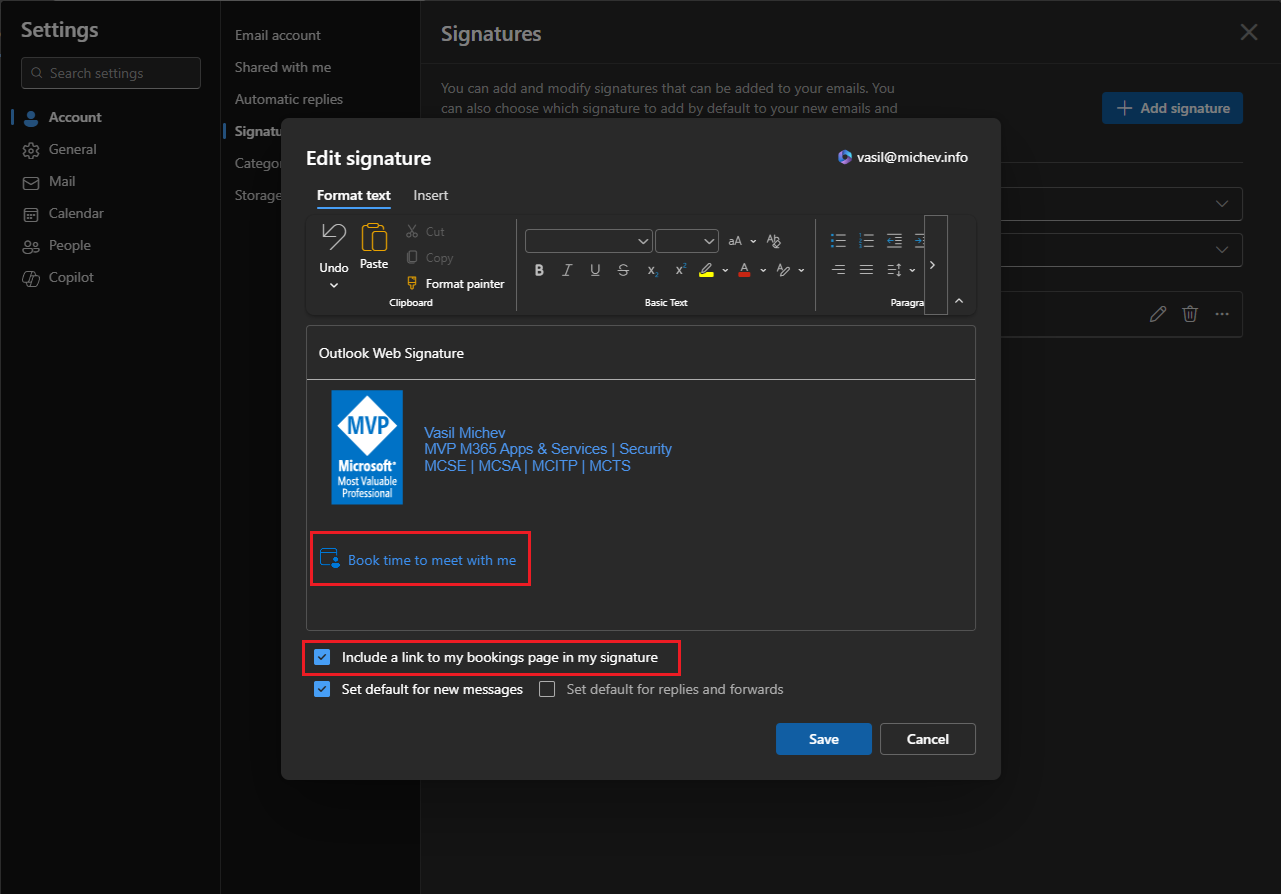
- Signature and click the Edit button next to the signature you are currently using. Therein, toggle the Include a link to my bookings page in my signature check box, as shown below.
- Confirm the changes and you are all set.